
Backing up your photos and files is essential in today’s digital world. Whether you’re protecting cherished memories or important documents, having a reliable backup plan can save you time, stress, and heartache in case of device failure, accidental deletion, or theft. In this guide, we’ll walk you through practical steps to back up your data safely and easily.
Why Backing Up Your Data Matters
Your photos, videos, and documents are valuable assets. Without a backup, you risk losing them forever when your computer crashes, your phone gets lost, or files become corrupted. Backups ensure you have a second copy stored somewhere else, so you can recover your data quickly.
Types of Backup Options
There are several backup methods to choose from. Each has its benefits, so consider combining a few for extra security.
1. External Hard Drives
An external hard drive is a physical device you connect to your computer via USB or other ports. It offers high storage capacity and easy access.
– Pros: Fast data transfer, no internet needed, one-time purchase
– Cons: Can be damaged, lost, or stolen if not stored properly
2. Cloud Storage Services
Cloud storage involves uploading your files to online servers maintained by companies such as Google Drive, Dropbox, or Microsoft OneDrive.
– Pros: Access your files anywhere, automatic syncing, often includes version history
– Cons: Requires internet, subscription fees for larger storage, privacy considerations
3. USB Flash Drives
USB flash drives are small, portable, and affordable for backing up smaller amounts of data.
– Pros: Portable, easy to use
– Cons: Less storage space, easy to lose or damage
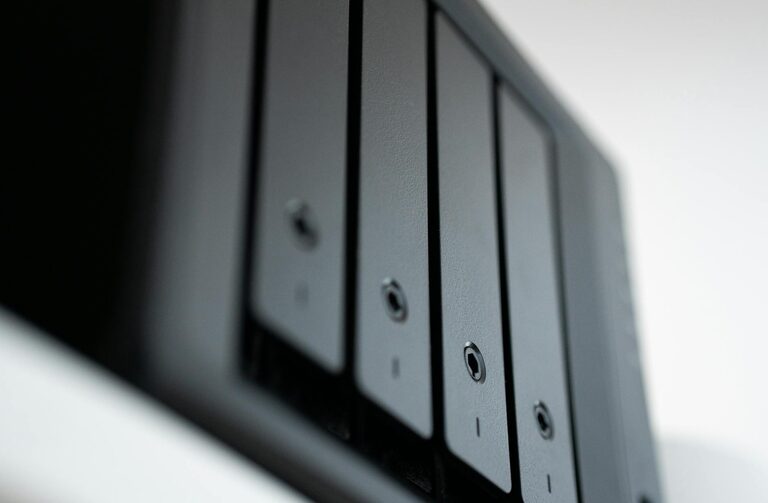
4. Network Attached Storage (NAS)
NAS devices connect to your home network, allowing multiple devices to back up data centrally.
– Pros: Large capacity, accessible by multiple devices, often supports automatic backups
– Cons: Costlier upfront, requires some technical setup
Step-by-Step Guide to Back Up Your Photos and Files
Follow these steps to create a dependable backup routine.
Step 1: Organize Your Files
Before backing up, organize your photos and documents into folders by date, event, or category. This will make it easier to locate files later and ensure you don’t miss anything important.
Step 2: Choose Your Backup Method(s)
Decide which backup options suit your needs and budget best. Many people combine cloud storage with an external hard drive for extra protection.
Step 3: Back Up to External Storage
– Connect your external hard drive or USB flash drive to your computer.
– Copy your organized folders to the device.
– Safely eject the device once the transfer completes.
– Store the device in a secure, dry place away from extreme temperatures.
Step 4: Use Cloud Storage
– Create an account with a reliable cloud service if you don’t have one.
– Download and install their backup or sync software.
– Select the folders you want to back up.
– Enable automatic syncing if available.
– Periodically check that your files are uploading correctly.
Step 5: Automate Your Backups
Manual backups can be forgotten, so setting up automatic backups brings peace of mind.
– On Windows, use File History or built-in backup tools.
– On Mac, use Time Machine.
– Many cloud services offer apps that automatically sync selected folders.
Step 6: Verify and Update Your Backups Regularly
Regularly check that your backups are working correctly and that new photos or files are backed up. Set calendar reminders if needed.
Tips for Effective Backup Management
– Keep multiple copies: Having backups in different locations (e.g., one external drive at home and cloud backup) protects against theft or disaster.
– Encrypt sensitive data: Use encryption if your files contain private information, especially for cloud storage.
– Label your backup devices: Clearly mark external drives with dates or contents.
– Test restoration: Occasionally try restoring files from your backup to ensure the process works smoothly.
– Delete duplicates: Removing duplicate files saves storage space and reduces confusion.
Common Mistakes to Avoid
– Relying on only one backup method
– Ignoring backup updates after adding new files
– Storing backup devices in risky spots like the same room as your computer during a fire
– Assuming cloud storage offers unlimited free space
– Overlooking software updates for backup tools
Final Thoughts
Backing up your photos and files doesn’t have to be complicated or time-consuming. By setting up a backup system tailored to your needs and habits, you can protect your digital life from unexpected loss. Start today by choosing your preferred backup options and organizing your files — it’s one of the best steps you can take for peace of mind in the digital age.